All guides
- 1. Install and get started
- 2. Batch images and videos on Google Flow
- 3. Auto download and history
- 4. Remove logos from images and videos
- 5. Install Mark Bridge and turn on the Flow API
- 6. Build and run workflows
- 7. Use ChatGPT, Gemini, Grok and Muse
- 8. Prompt and creative tools
- 9. Plans, upgrades and payment
- 10. Control Mark Flow with an AI agent (MCP)
- 11. Mark Flow settings: what each option does
- 12. Troubleshooting
Guide › 7
Use ChatGPT, Gemini, Grok and Muse
Let Mark Flow send batches of prompts to ChatGPT, Gemini, Grok or Muse with your own accounts and bring the results back for you.
How it works
Mark Flow has no ChatGPT, Gemini, Grok or Muse account of its own. It drives that site's tab in your Chrome the way you would: open the site, paste the prompt, press send, wait for the result and download it. So the results and the limits all come from your own account on each site.
You pick the platform with the buttons (pills) in the Gen tab of the side panel (the panel on the right edge of the browser): Google Flow, ChatGPT, Grok, Gemini, Muse.
Before you start
- The Pro or Agency plan. The Free plan only covers Google Flow: the ChatGPT, Grok, Gemini and Muse pills show a crown and open the Upgrade dialog. See Plans and billing.
- You are signed in to Mark Flow in the side panel.
- You are already signed in to each site you want to use, in the same Chrome where Mark Flow is installed:
chatgpt.com,gemini.google.com,grok.com,muse.ai. - Your account on that site still has image or video generations left.
Mark Flow does not give you extra generations. Your account limits on each site still apply: when the site says you are out, Mark Flow stops at that prompt too.
What each platform can make
| Platform | Makes | Models | Aspect ratios | Reference images | Special options |
|---|---|---|---|---|---|
| ChatGPT | Images | Auto, Instant, Medium, High, Pro | 1:1, 3:4, 9:16, 4:3, 16:9 | Up to 4 | Delete after gen |
| Gemini | Images and videos | 3.8 Flash, 3.5 Flash-Lite, 3.1 Pro, 4 Argon | Images: 1:1, 16:9, 9:16, 4:3, 3:4. Videos: 16:9, 9:16 | Up to 4 | Delete after gen |
| Grok | Images and videos | Grok Imagine | 2:3, 3:2, 1:1, 9:16, 16:9 | 1 | Images: quality Speed or Quality. Videos: 6s, 10s or 15s long; 480p or 720p |
| Muse | Images and videos | — | 16:9, 9:16, 1:1 | None | — |
A model is the AI version the site uses to generate. Models and options can change when the sites update; Mark Flow loads the latest list automatically.
Run prompts on ChatGPT, Gemini, Grok or Muse
Open the side panel (shortcut
Alt+S) and choose the Gen tab.Click the platform pill just below the prompt box: ChatGPT, Grok, Gemini or Muse. Mark Flow opens that site's tab (or switches to the one already open).
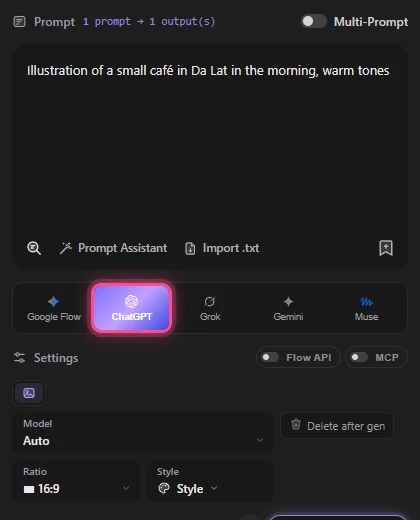
Type your prompt in the Prompt box. To run several, turn on Multi-Prompt and leave a blank line between prompts. See also Batch generation.
Pick the options on the settings bar: image or video (Gemini, Grok, Muse), model, aspect ratio; for Grok, image quality or video length and resolution. Add reference images if you need them.
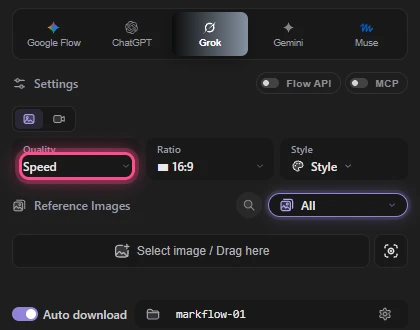
Click Generate. The Confirm Run dialog shows the platform name. For ChatGPT, Gemini and Grok it also shows a status: Checking..., Ready, Not logged in, or Waiting Cloudflare... (Grok).
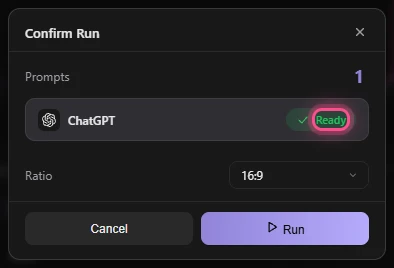
When the status says Ready (Muse shows no status), click Run. Mark Flow switches to the site's tab, pastes the prompt, sends it, waits for the result and only then moves to the next prompt.
Follow progress in the Logs tab. To save files to your computer, turn on Auto download in the Gen tab before running (see Auto download).
On these platforms prompts always run one at a time and Mark Flow always presses send itself. The Submit mode choice (Auto submit / Manual Submit) and Run mode in the Confirm Run dialog only appear when you run on Google Flow.
While a run is going, don't type into, close or reload the ChatGPT, Gemini, Grok or Muse tab Mark Flow is using. Having several tabs of the same site open can also break a run.
Per-platform settings
Click the gear icon at the top of the side panel → Settings.
In the left menu, choose Providers. Each platform has its own card.
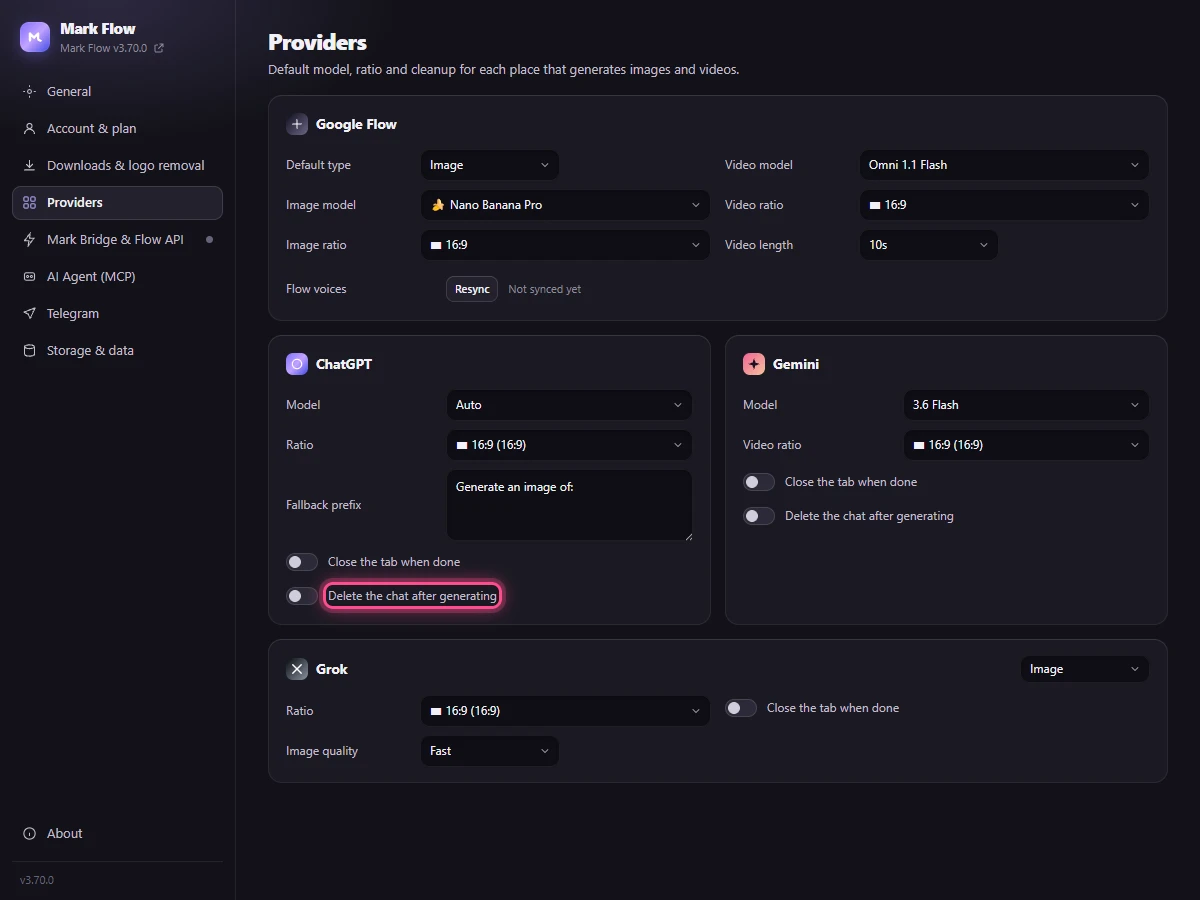
Change what you need (see the list below), then click Save changes.
- ChatGPT: default Model and Ratio; Fallback prefix is text Mark Flow adds to the start of the prompt when it cannot switch ChatGPT into image mode, so ChatGPT knows you want an image; Close the tab when done; Delete the chat after generating.
- Gemini: Model, Video ratio, Close the tab when done, Delete the chat after generating.
- Grok: default mode Image or Video, Ratio, Image quality (Fast / Best), Video length, Resolution, Close the tab when done.
- To have a platform already selected each time you open the Gen tab, go to General › Default provider.
Turn on Delete the chat after generating so your ChatGPT and Gemini chat history doesn't fill up after long runs.
Common problems
- A pill shows a crown and opens the Upgrade dialog: the account is on the Free plan. ChatGPT, Gemini, Grok and Muse need Pro.
- The ChatGPT login required dialog (You are not logged in to ChatGPT. Open a tab to log in?): click Open tab, sign in to ChatGPT in the new tab, then click Generate again.
- The Grok login required dialog: sign in to
grok.comin the same Chrome and run again. - Not logged in in the Confirm Run dialog: switch to that site's tab, sign in and wait for the status to change to Ready.
- Waiting Cloudflare... (Grok): Grok is showing a check that you are human. Open the Grok tab, complete the check yourself, then run again if needed.
- A message like ChatGPT: Đã hết lượt tạo ảnh. Vui lòng thử lại sau. (out of image generations): your account on that site has no generations left. Wait, or upgrade your account on that site.
- Nội dung bị chặn do vi phạm chính sách. (content blocked by policy): the site refused the prompt. Edit the prompt and run again.
- Duplicate tabs detected: you have several tabs of the same site open. Click Close extra tabs to let Mark Flow close the extras.
For other errors, see Troubleshooting.
Still stuck? See Troubleshooting or email admin.markflow@gmail.com with your Mark Flow version, the AI platform and the exact error message.