All guides
- 1. Install and get started
- 2. Batch images and videos on Google Flow
- 3. Auto download and history
- 4. Remove logos from images and videos
- 5. Install Mark Bridge and turn on the Flow API
- 6. Build and run workflows
- 7. Use ChatGPT, Gemini, Grok and Muse
- 8. Prompt and creative tools
- 9. Plans, upgrades and payment
- 10. Control Mark Flow with an AI agent (MCP)
- 11. Mark Flow settings: what each option does
- 12. Troubleshooting
Guide › 11
Mark Flow settings: what each option does
Open the Settings window, understand every page and option in plain words, know which ones to leave at their defaults and save your changes correctly.
Open Settings and save changes
Open the Mark Flow side panel (the panel on the right edge of the browser; press
Alt+Sto open it).Click the gear icon in the top-right corner of the side panel. In the small menu that opens, click Settings.
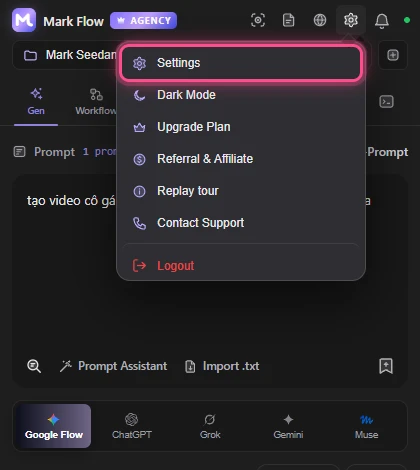
The gear menu in the top-right corner of the side panel. The Settings window opens on its own. The left menu lists the pages General, Account & plan, Downloads & logo removal, Providers, Mark Bridge & Flow API, AI Agent (MCP), Storage & data and About. Click a page name to open it.
Most options only take effect after you save. When you change something, Unsaved changes and a Save changes button appear in the top-right corner of the page. One click saves every change on every page, and a Saved notice appears. Options in a card labelled Applies instantly (theme, language) take effect as soon as you change them.
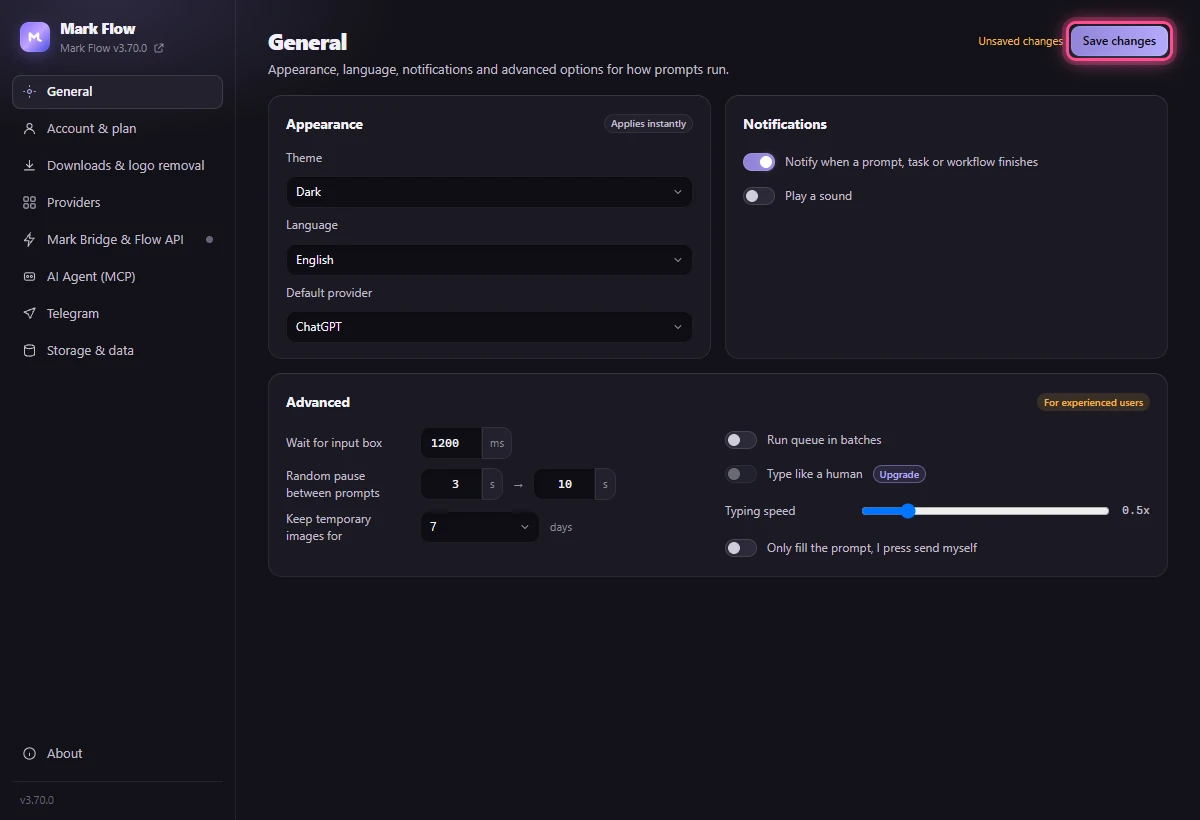
If you close the window with unsaved changes, Chrome asks whether you want to leave. Choose to stay and click Save changes if you want to keep them.
Options with a crown icon or an Upgrade label need a paid plan. When you are signed in, your settings are synced to your account so you can use them on another computer.
General
| Option | What it does | For beginners |
|---|---|---|
| Theme | Dark, Light or Follow system (matches your computer's light or dark mode). Applies instantly. | Your choice (default Dark) |
| Language | Tiếng Việt or English for all of Mark Flow. Applies instantly. | Your choice |
| Default provider | The place that is pre-selected for generating: Google Flow, ChatGPT, Grok or Gemini. This one needs Save changes even though it sits in the Applies instantly card. | Google Flow (the Free plan only uses Google Flow) |
| Notify when a prompt, task or workflow finishes | Shows a notification when a run ends. | Leave on (on by default) |
| Play a sound | Plays a sound with the notification. | Your choice (off by default) |
The Advanced card (labelled For experienced users) changes how Mark Flow works on the web pages. Beginners should keep the defaults.
| Option | What it does | For beginners |
|---|---|---|
| Wait for input box | The longest time (in milliseconds) Mark Flow waits for the prompt box on the web page to be ready. Default 1200 ms, that is 1.2 seconds. | Keep the default; raise it only on a slow computer or connection |
| Random pause between prompts | A random pause between two prompts, from the lower to the higher number (seconds). Default 3 → 10 seconds, so sending looks like a real user. | Keep the default |
| Keep temporary images for | Images you upload and screenshots are kept on your computer for 1, 3, 7, 14 or 30 days, then deleted automatically. Default 7. | Keep the default |
| Run queue in batches (Pro) | Sends runs through the shared queue, visible in the Logs › Queue tab. The Flow API always uses the queue. On version 3.70.7 and older, the AI Agent needs this option (or the Flow API) to generate with Google Flow. | Leave off (3.70.7 and older: turn on if you use the AI Agent without the Flow API) |
| Type like a human (Pro) and Typing speed | Mark Flow works on the Flow page at a slower, random, human-like pace. The slider goes from 0.2x to 2x, default 0.5x; smaller means slower. | Leave off |
| Only fill the prompt, I press send myself | Mark Flow only fills the prompt box; you click the send button on the page yourself. | Leave off |
Account & plan
- The Account card when signed in: your email, a Synced through the server · Plan line with your plan name, and the buttons Upgrade (Free plan only), Change password, Refresh account and Sign out. Older versions of Mark Flow also show Dashboard, which does not work yet. The round icon next to your email is Link Google, so you can sign in with your Google account.
- Change password opens a small form inside the card: enter the Current password, the New password (at least 8 characters) and Repeat new password, then click Save password. This computer stays signed in and other devices are signed out. Accounts that only sign in with Google see Set password instead and need no current password; afterwards you can sign in with your email too.
- When you are not signed in, the card says Not signed in · Data is stored on this computer with a Sign in button. The badge in the top-right corner of the page reads Local (not signed in) or Cloud (signed in).
- The Today card: the day's prompts sent, failed, tasks run and workflows run.
- The Data on this computer card (only when not signed in): Export settings (.json) saves your settings to a file; Import from file replaces your current settings with the file; Clear cache removes thumbnails and temporary data and keeps prompts, workflows and settings.
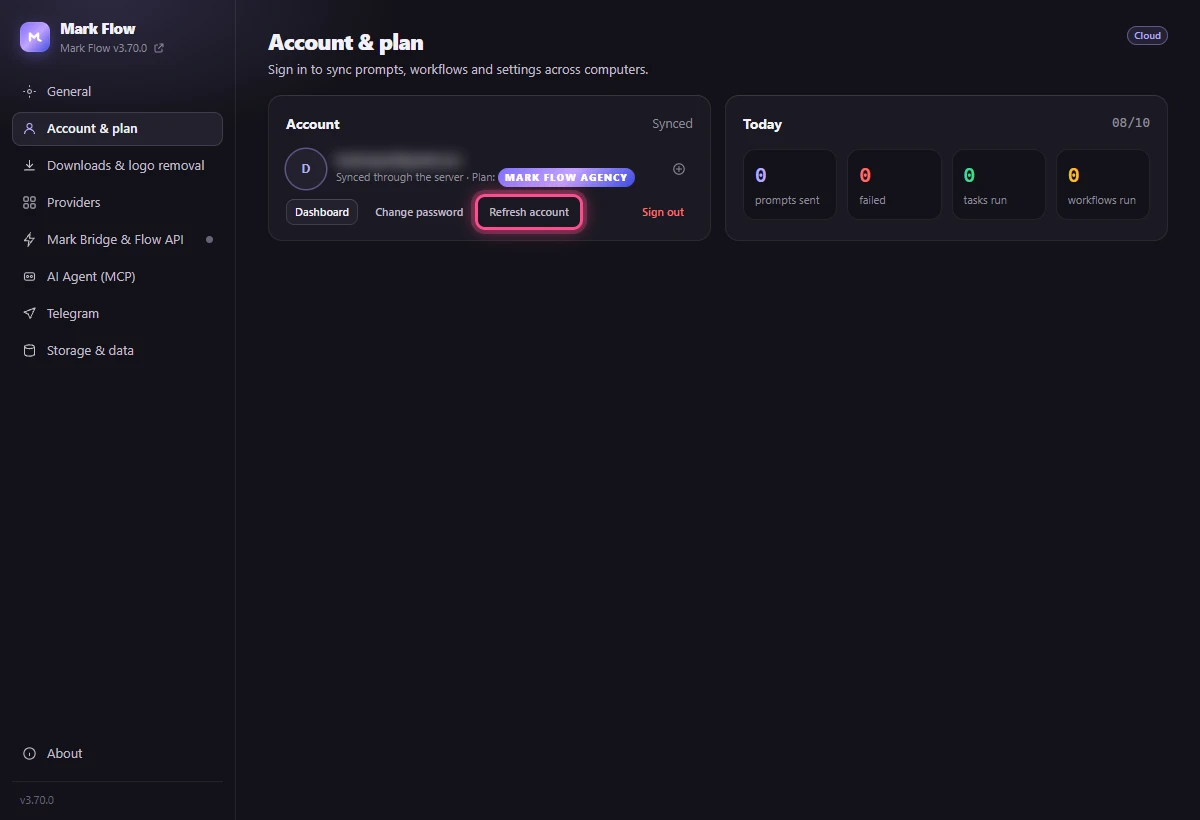
Just paid and your plan has not changed? Click Refresh account to reload your latest plan and permissions. See also Plans and billing.
Downloads & logo removal
This page applies to every image and video downloaded from Google Flow through Mark Flow.
| Option | What it does |
|---|---|
| Auto download (Pro) | The main switch. When it is off, the fields below are greyed out. |
| Folder | The main folder inside Downloads. Default markflow_output. |
| Project name and File name template | Name the downloaded files. Default template [Date]_[Project]_[Prompt]_[Index]; variables: [Date] date, [Time] time, [Project] project name, [Prompt] start of the prompt, [Index] running number. Project name is the text that fills [Project]. |
| Image quality, Video quality | The resolution to download. Defaults: images 1K, videos 720p. Higher settings mean bigger files and slower downloads. |
| Open the results grid when running Flow API | Opens a grid of results while running with the Flow API. On by default. |
| The Logo removal card | Three switches for removing logos on download, see Remove logos from images and videos. |
The One-time setup box reminds you to turn off Chrome's option to ask where to save each file and to disable other auto-download extensions. Click Open Chrome download settings or Open extensions list to do it quickly. Details: Auto download.
Providers
A “provider” is a place that generates images and videos: Google Flow, ChatGPT, Gemini, Grok. This page sets the pre-selected values for each one. Beginners can keep the defaults and change things directly in the Gen tab when needed.
| Provider | Options |
|---|---|
| Google Flow | Default type (Image or Video), Image model, Image ratio, Video model, Video ratio, Video length; Flow voices with a Resync button. |
| ChatGPT | Model, Ratio, Fallback prefix, Close the tab when done, Delete the chat after generating. |
| Gemini | Model, Video ratio, Close the tab when done, Delete the chat after generating. |
| Grok | An Image / Video selector at the top of the card; Ratio; for images: Image quality (Fast or Best); for videos: Video length (6s, 10s) and Resolution (480p, 720p); Close the tab when done. |
- Ratio (aspect ratio) is the shape of the picture, for example 16:9 landscape, 9:16 portrait, 1:1 square.
- Fallback prefix: when Mark Flow cannot turn on ChatGPT's image mode, it adds this sentence in front of the prompt so ChatGPT knows to draw an image. Default
Generate an image of:. - Close the tab when done closes the provider's tab when the run ends. Delete the chat after generating deletes the conversation it just used, to keep your chat history tidy.
- Resync (Flow voices) reloads the list of voices from Google Flow for videos with a voice. It needs an open, signed-in Flow tab.
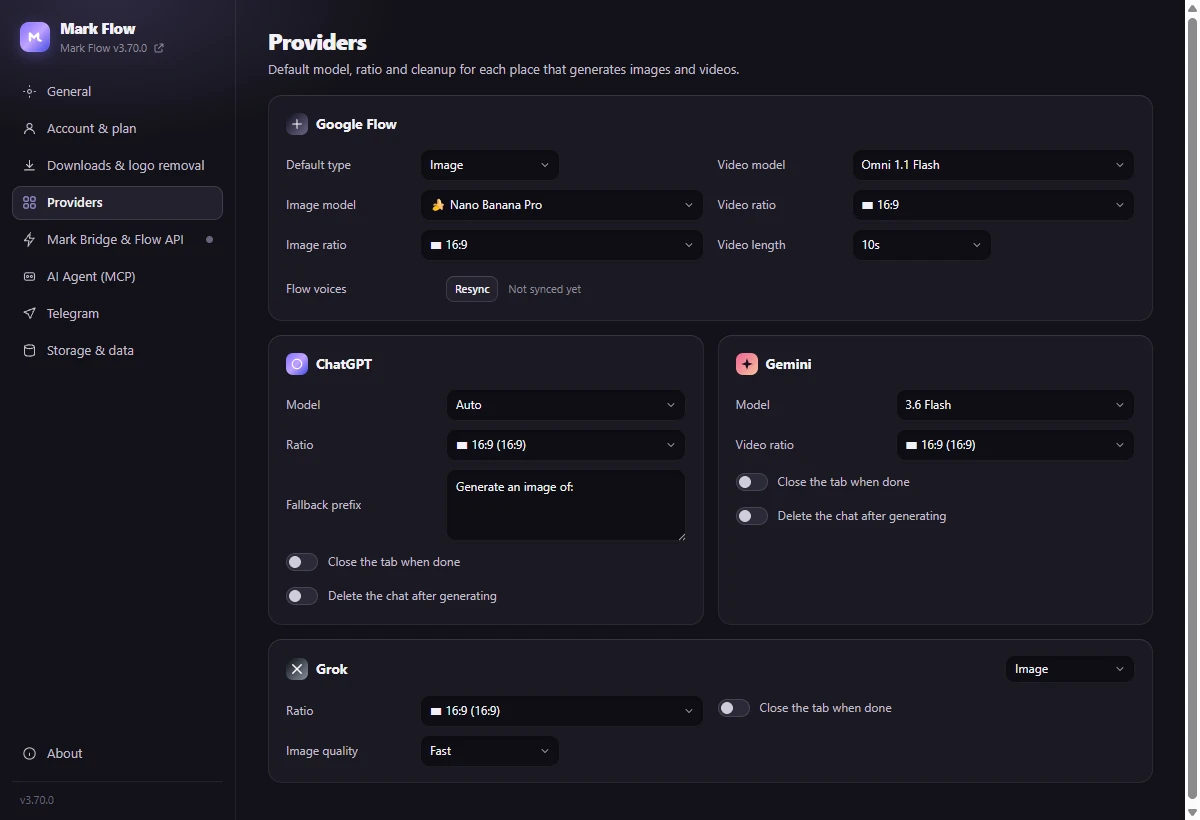
If you see The model list changed and your previous choice is gone. Pick again and save., pick a model again and click Save changes. How to use ChatGPT, Gemini and Grok: see ChatGPT, Gemini, Grok and Muse.
Mark Bridge & Flow API, AI Agent (MCP)
Mark Bridge & Flow API shows whether Mark Bridge (the companion extension that handles the Flow API and logo removal) is ready, and lets you choose how Google Flow runs: Drive the Flow tab, Auto (API when ready) or Flow API (fastest). Full guide: Install Mark Bridge and turn on the Flow API.
AI Agent (MCP) creates tokens so AI apps such as Claude Desktop or Codex can drive Mark Flow, and lets you choose whether the agent's results are saved to your computer. Requires the Pro plan. Full guide: Control Mark Flow with an AI agent.
Storage & data
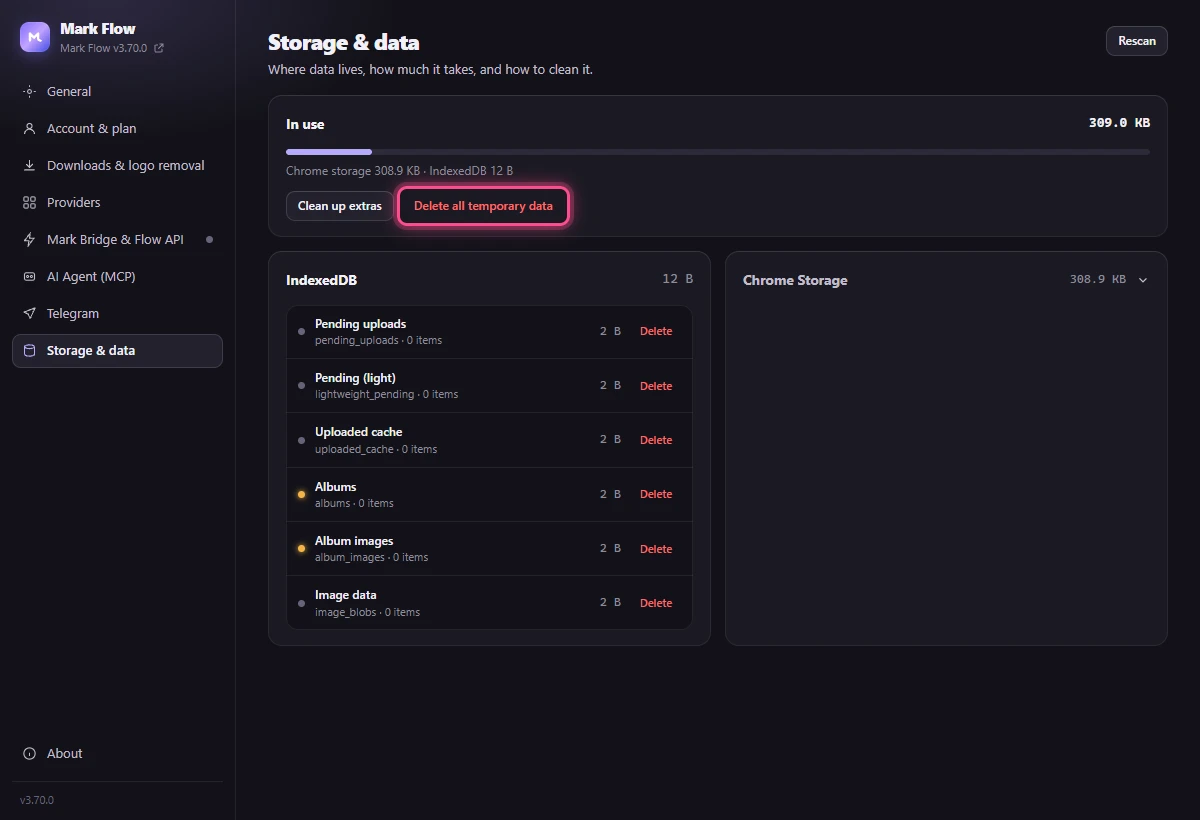
This page shows how much space Mark Flow uses on your computer and helps you clean up.
- In use: the total size, split between Chrome storage and IndexedDB (the two places Chrome keeps extension data). Click Rescan in the top-right corner to measure again.
- Clean up extras: removes thumbnails stored inside tasks and old caches. If the history kept on this computer has more than 50 entries, only the 50 newest are kept. Settings, prompts and workflows are not touched.
- Delete all temporary data: deletes tasks, workflows, prompts, history and temporary images on this computer. Settings and sign-in are kept.
- The IndexedDB and Chrome Storage cards list each kind of data with a Delete button. An orange dot means that data cannot be rebuilt.
- If you see … images waiting to upload. Deleting loses them., do not delete anything until those images have finished uploading.
Delete all temporary data CANNOT be undone. Before you click it, make sure you no longer need the tasks, workflows and prompts stored on this computer. Beginners should not delete single items in the IndexedDB and Chrome Storage cards.
About
- The Mark Flow version number (also shown at the bottom of the left menu).
- Where data is stored: settings, prompts, workflows, tasks and history live in Chrome on your computer and are lost if you remove the extension, unless you signed in to sync; uploaded images and screenshots are deleted after the number of days you chose in General › Advanced; the Mark Flow server only syncs settings, prompts and workflows when you are signed in, and never receives images.
- Support: the Docs button opens these guides, the Contact button opens the support page.
When you contact support, include the version number from this page to get a faster answer. Other problems: see Troubleshooting.
Still stuck? See Troubleshooting or email admin.markflow@gmail.com with your Mark Flow version, the AI platform and the exact error message.