All guides
- 1. Install and get started
- 2. Batch images and videos on Google Flow
- 3. Auto download and history
- 4. Remove logos from images and videos
- 5. Install Mark Bridge and turn on the Flow API
- 6. Build and run workflows
- 7. Use ChatGPT, Gemini, Grok and Muse
- 8. Prompt and creative tools
- 9. Plans, upgrades and payment
- 10. Control Mark Flow with an AI agent (MCP)
- 11. Mark Flow settings: what each option does
- 12. Troubleshooting
Guide › 12
Troubleshooting
Find the message you are seeing, understand what it means and follow the steps to get Mark Flow running again.
Quick checks first
Most problems go away after the steps below. Work through them in order and try again after each one:
Keep only one Google Flow tab open, signed in to the right Google account, with the right project open.
Reload the Flow tab (press
F5) and wait until the page has fully loaded.Close the side panel and open it again with
Alt+S.Update Chrome: open
chrome://settings/help, let Chrome check, and relaunch if it asks.Open
chrome://extensions, switch Mark Flow off, then on again.
Google Flow tab not found, or several Flow tabs open
Message: the side panel only shows Google Flow tab not open and an Open Google Flow button; or a Google Flow Not Found dialog; or the line “No Google Flow tab is open. Open Flow and try again.”
What it means: Mark Flow cannot see any open Google Flow tab in Chrome.
Click Open Google Flow in the side panel, or open Google Flow yourself. Mark Flow accepts both
labs.google/fxandflow.google.com.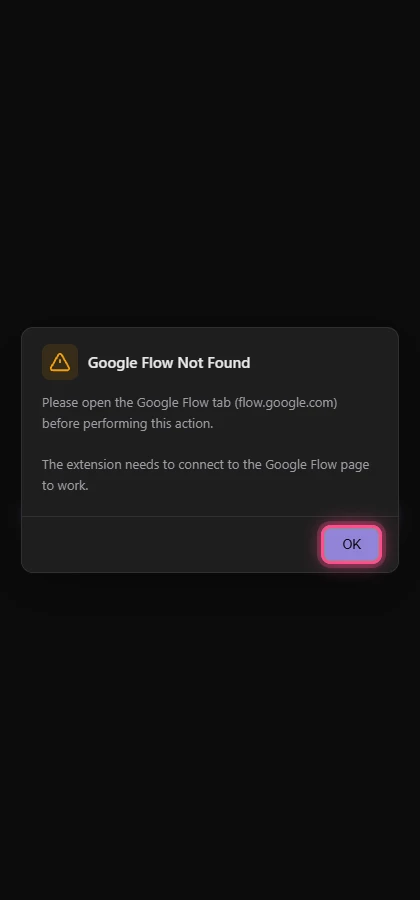
Sign in to your Google account if Flow asks. Sign in to Google Flow in the side panel means Flow is not signed in.
Open a project, or pick one in the side panel's Select project box, then run again.
Message: a yellow bar at the top of the side panel reports several Flow tabs, with a Close other tabs button.
What it means: Mark Flow only works reliably with one Flow tab. With two or more, prompts can go to the wrong tab.
Click Close other tabs. Mark Flow keeps one Flow tab and closes the rest.
Or close the extra Flow tabs yourself, keeping only the tab with the project you are using.
Lost connection to the Mark Flow server
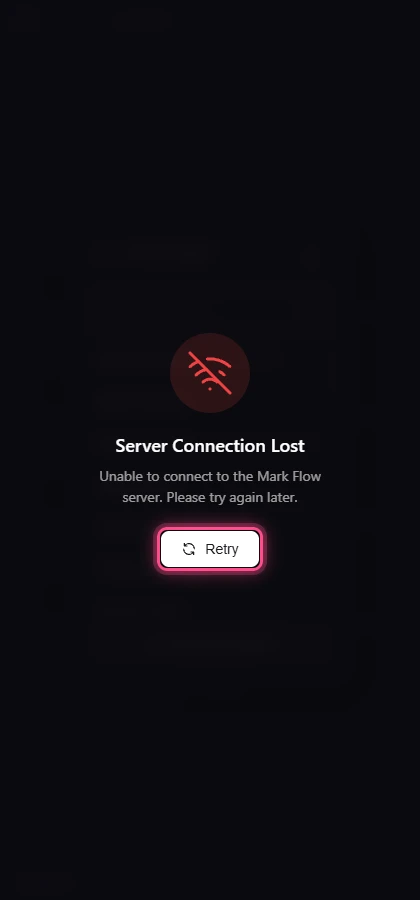
Message: the whole side panel is covered by Server Connection Lost, the line “Unable to connect to the Mark Flow server. Please try again later.” and a Retry button.
What it means: the side panel cannot reach the Mark Flow server. Usual causes: no internet, a network or program blocking the connection, or server maintenance.
Open any web page to make sure you are online.
If you use a VPN, a firewall or an ad blocker, pause it or allow
api.markflow.net.Click Retry. The button shows Checking... for a few seconds.
Still failing after a few minutes: report it as described at the end of this guide.
- Lost realtime connection (a small bar at the top of the side panel): only the live update channel from the server dropped, and Mark Flow reconnects by itself. If the bar stays, close and reopen the side panel.
- Extension Not Authorized: the Mark Flow server does not accept this copy of the extension, usually because it was not installed from the Chrome Web Store. Remove it in
chrome://extensions, click Open Chrome Web Store and install the official version.
Flow API and Mark Bridge not ready
This only applies when Flow API is on (Pro plan). The label next to the Flow API switch in the Gen tab tells you what is missing:
| Label | What it means | What to do |
|---|---|---|
| Connected | Everything is ready | Nothing |
| Bridge missing | The Mark Bridge extension is not installed | Install it with Mark Bridge and Flow API, or turn Flow API off to use tab control |
| Flow tab closed | No Flow tab is open | Open Google Flow |
| Sign in needed | The Flow tab is not signed in to Google | Sign in on the Flow tab |
| Session expired | The Google session on Flow has expired | Sign in to Flow again with the same account |
| Waiting for Flow | Waiting for Flow to answer | Wait a few seconds; if nothing changes, reload the Flow tab |
| Off | Flow API is switched off | Turn the switch on if you want it |
Fix what the table says, then click the small refresh button next to the switch (Reconnect Flow API).
Still not working? Open Settings › Mark Bridge & Flow API. The Connection status card lists each requirement and whether it is met. Fix the missing one and click Re-check.
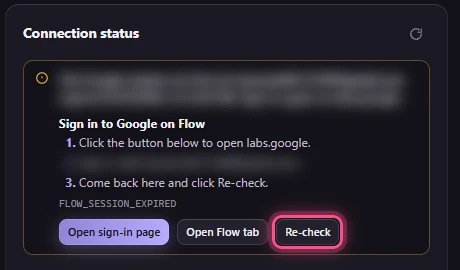
- A message (in Vietnamese) starting “Chế độ Flow API cần cài Mark Bridge…”: Mark Bridge is not installed. Get it from the Mark Bridge page, or turn Flow API off.
- “A Flow tab is open but no token was issued yet. Reload the Flow tab and re-check.”: do exactly that.
- “Mark Bridge … is outdated, … or newer is required.”: download the new version, unzip it over the old folder, then click the reload button (circular arrow) on the Mark Bridge card in
chrome://extensions. - “Flow API requires the Pro plan.”: the Free plan only runs with tab control.
Google Flow refuses, blocks or runs out
These errors come from Google Flow, not from Mark Flow. They appear in the Gen tab's Failed prompts section or in the tracker on the Flow page.
| Message | What it means | What to do |
|---|---|---|
| “Google Flow blocked this prompt under its content policy…” | The prompt or a reference image breaks Google's content rules | Soften the wording or change the reference image, then run again |
| “Your Google Flow quota is used up…” | Your Google account has no Flow credits left | Wait for credits to come back, upgrade your Google Flow plan, or use another account with credits |
| “Your Google Flow plan cannot use this model…” | Your Flow plan does not include the chosen model | Pick another model in the Gen tab |
| “Google Flow flagged unusual activity…”, or the tracker shows Paused | Flow suspects automation because prompts arrived too fast | Wait 1–2 minutes, then click Resume in the tracker. Next time choose Sequential or Manual Submit |
| “reCAPTCHA verification failed…” | Google's anti-bot check did not pass | Close the Flow tab, open it again, sign in and run again |
| “Google Flow servers are failing or overloaded…” | Flow is having trouble | Try again in a few minutes |
| “No new results after submit…” | The prompt was sent but Flow returned nothing | Reload the Flow tab and rerun the failed prompts |
Click Retry all in Failed prompts to put every failed prompt back in the prompt box, edit them, and run them again in one go.
Plan limits and lock dialogs
| You see | What it means | What to do |
|---|---|---|
| A warning (in Vietnamese) starting “Gói của bạn giới hạn 4 prompt/batch…” | The Free plan runs up to 4 prompts at a time | Split into several runs, or upgrade |
| Feature locked | Your plan does not include this feature | Click Upgrade now, or skip that feature |
| Task Quota Exhausted or Workflow runs exhausted | You used today's Free runs | Wait until tomorrow, or upgrade |
| Login Required | This feature needs a Mark Flow account | Click Login; an account is free |
| Trial Quota Exhausted | You are not signed in and used the trial runs | Sign in to keep going |
| A greyed-out switch with a crown, saying “This feature requires a Pro plan” | A Pro feature | See Plans and billing |
| The ChatGPT, Grok, Gemini or Muse button is locked | The Free plan only uses Google Flow | Upgrade to Pro |
Just upgraded and still locked? Open Settings › Account & plan and click Refresh account, or sign out and back in.
Not signed in to ChatGPT, Gemini or Grok
Mark Flow uses the account you are already signed in with on that site, in the same Chrome. When something is wrong, Confirm Run shows Not logged in or Waiting Cloudflare....
- ChatGPT login required (“You are not logged in to ChatGPT. Open a tab to log in?”): click Open tab, sign in in the new tab, then run again.
- Grok login required (“Please login at grok.com to use this feature”): open grok.com, sign in and run again.
- Waiting Cloudflare... (Grok): Grok is showing a “are you human” check. Open the Grok tab, complete it yourself, then run again.
- Gemini: sign in to gemini.google.com with a Google account that still has image credits.
Open the provider's site (
chatgpt.com,gemini.google.comorgrok.com) in the same Chrome that runs Mark Flow.Sign in, then create one image by hand to make sure the account still has credits.
Go back to the side panel and click Generate again. More in ChatGPT, Gemini, Grok and Muse.
Downloads in the wrong place, or the logo was not removed
- Chrome asks where to save every file: turn off the ask-where-to-save option in
chrome://settings/downloads. See Auto download and history. - Files are not in the expected folder: check Chrome's download folder, the Folder field in Settings › Downloads & logo removal, the sub-folder in the Gen tab, and turn off other download extensions.
- No files at all: check the Auto download switch, Download in Confirm Run, and that you are on Pro.
Message: “No watermark found in the bottom-right corner (best match …%, needs ≥ …%). Image left unchanged.”, or the tracker says “Download complete (no watermark found)” or “Saved original (watermark not removed)”.
What it means: Mark Flow did not find the logo where it expects it, or could not remove it, so it kept the original. The file is not damaged.
Use the original file downloaded from Flow or Gemini, not a cropped, resized or screenshotted copy.
Check that Mark Bridge is ready: Settings › Mark Bridge & Flow API › Re-check.
Try the file again in the Remove logo tab. More in Remove logo.
How to report a bug
Tried everything above and it still fails? Send support enough information to reproduce the problem:
- Your Mark Flow version: see
chrome://extensionsor Settings › About. - Your Chrome version (
chrome://settings/help) and operating system (Windows or macOS). - The AI platform (Google Flow, ChatGPT…) and the mode (tab control or Flow API).
- The steps you took, in order.
- The exact error message, with screenshots of the side panel and the AI site.
Never send passwords, OTP codes, cookies, MCP tokens or any other token. In screenshots, hide emails, prompts and private images unless they are needed to fix the problem.
Send it through the Contact support page, or from the side panel: gear › Contact Support.
Still stuck? See Troubleshooting or email admin.markflow@gmail.com with your Mark Flow version, the AI platform and the exact error message.