All guides
- 1. Install and get started
- 2. Batch images and videos on Google Flow
- 3. Auto download and history
- 4. Remove logos from images and videos
- 5. Install Mark Bridge and turn on the Flow API
- 6. Build and run workflows
- 7. Use ChatGPT, Gemini, Grok and Muse
- 8. Prompt and creative tools
- 9. Plans, upgrades and payment
- 10. Control Mark Flow with an AI agent (MCP)
- 11. Mark Flow settings: what each option does
- 12. Troubleshooting
Guide › 1
Install and get started
Install Mark Flow in Chrome, open the side panel, create an account and learn each part of the interface, so you are ready for your first batch.
What Mark Flow is, and what it is not
Mark Flow is an extension for the Google Chrome browser. It does the repetitive work on AI image and video sites for you: typing prompts, pressing submit, waiting for results and downloading them. It works with Google Flow, ChatGPT, Gemini, Grok and Muse.
Mark Flow does not generate images or videos itself. They are still made by Google Flow (or ChatGPT, Gemini, Grok…) on your own account on that site, so that account needs credits or quota left. When it runs out there, Mark Flow cannot create more either.
The main things Mark Flow helps with:
- Running many prompts in one go on Google Flow: Batch images and videos.
- Downloading results automatically with file names you choose: Auto download and history.
- Removing the logo from Flow and Gemini images and videos: Remove logo.
- Chaining several steps into one automated flow: Workflow.
What you need
- A computer with Google Chrome version 116 or newer. Chrome on a phone cannot install extensions.
- A Google account to sign in to Google Flow, with image or video credits left.
- To use ChatGPT, Gemini, Grok or Muse: an account on that site, plus a Mark Flow Pro plan.
- An email address or Google account for your Mark Flow account. Recommended, but not required at first.
To check your Chrome version, type chrome://settings/help in the address bar and press Enter. Chrome updates itself if a newer version exists.
Install Mark Flow from the Chrome Web Store
Open the Mark Flow page on the Chrome Web Store in Chrome.
Click Add to Chrome at the top right of the page.
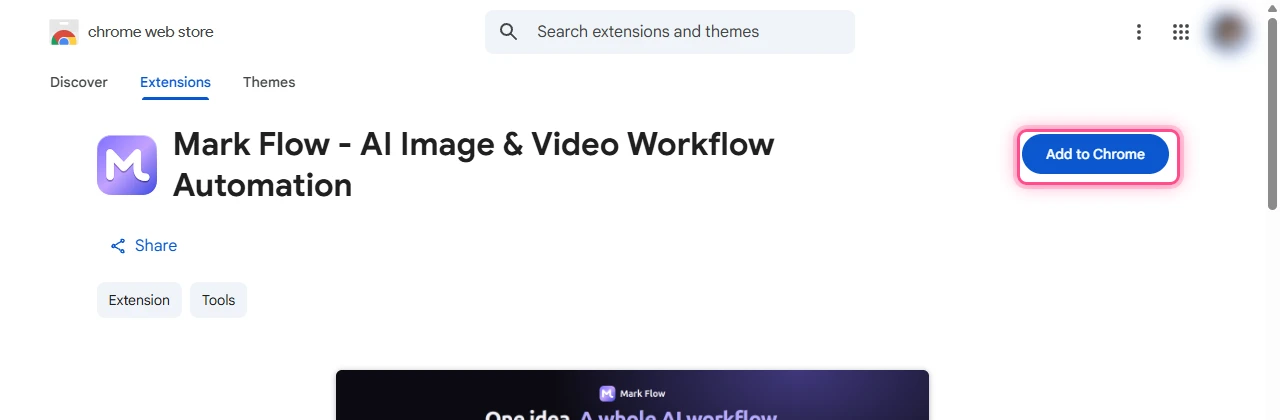
Chrome asks you to confirm and lists the permissions Mark Flow needs. Click Add extension. After a few seconds Chrome says Mark Flow was added.
Click the puzzle-piece icon (Extensions) at the top right of Chrome, next to the address bar.
Find Mark Flow in the list and click the pin icon next to it. The Mark Flow icon now stays on the toolbar.
The Chrome Web Store version updates itself, so you never download new versions by hand. Only install Mark Flow from the Chrome Web Store, never from a file someone sends you.
Open the side panel
The side panel is a control panel that opens on the right edge of the browser. It is Mark Flow's full interface, and every guide uses it. It stays open while you switch tabs, so you can watch the Flow page and control it at the same time.
Open Google Flow in a tab and sign in with your Google account.
Press
Alt+S. Or right-click the Mark Flow icon in the toolbar and choose Open side panel from Chrome's menu.The side panel opens on the right of the window. The first time it may take a few seconds to load.
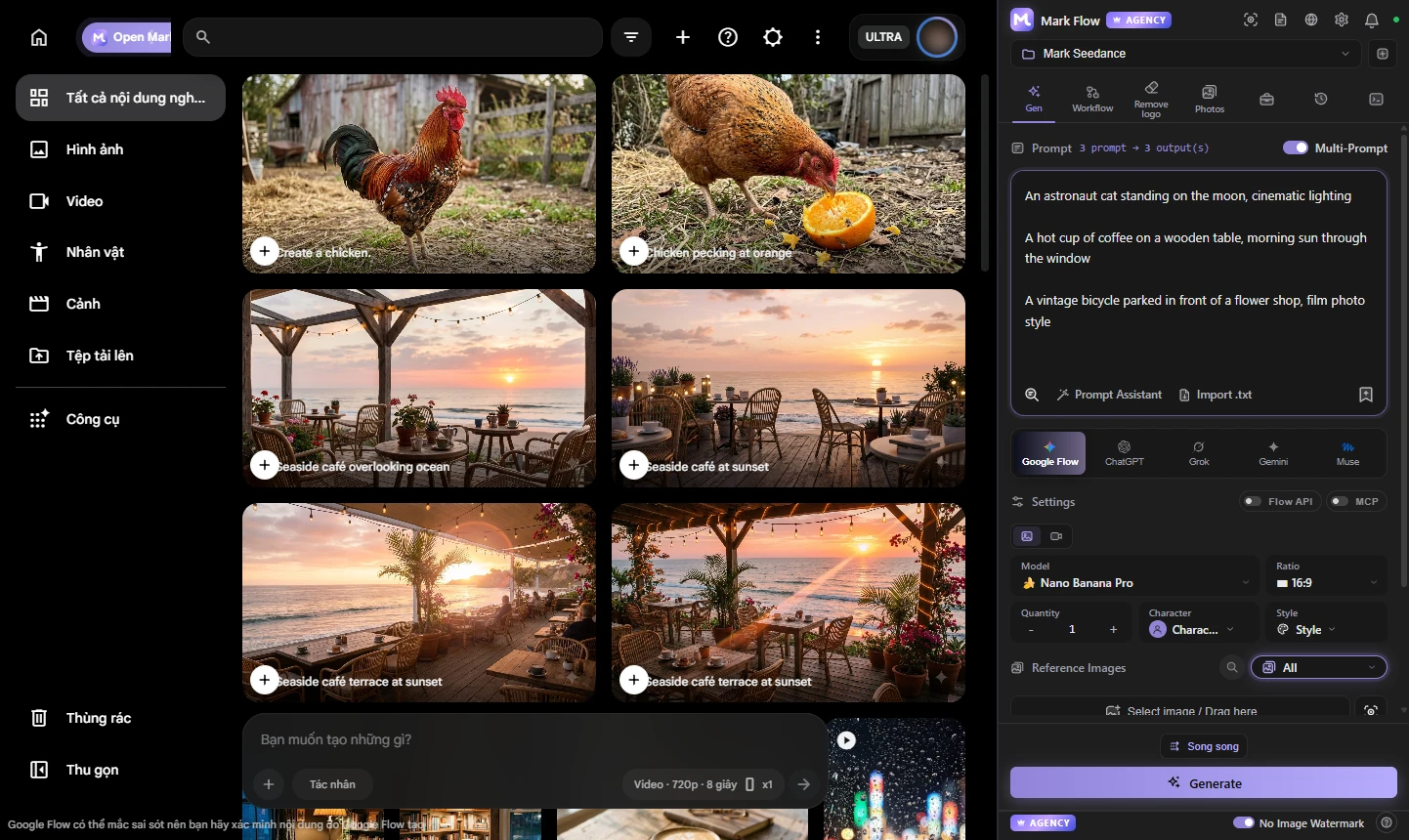
A left-click on the Mark Flow icon opens a small window instead, a compact version of Mark Flow. It closes as soon as you click elsewhere, so it is not suited to long runs. Use the side panel.
If no Google Flow tab is open, the side panel only shows Google Flow tab not open and an Open Google Flow button. Click it (or open Flow yourself) and the interface comes back.
Alt+S does nothing? Open chrome://extensions/shortcuts, find Mark Flow and set a key for Open Mark Flow side panel.
Create an account, sign in and pick a language
You can try Mark Flow without an account: the Gen tab still runs prompts on Google Flow within the Free plan limits. A free account is still worth it, because these need you to sign in: creating tasks and workflows, saving prompts, removing logos, upgrading, and syncing your data between computers.
Click the person icon (Sign in) at the top right of the side panel. The Login box opens.
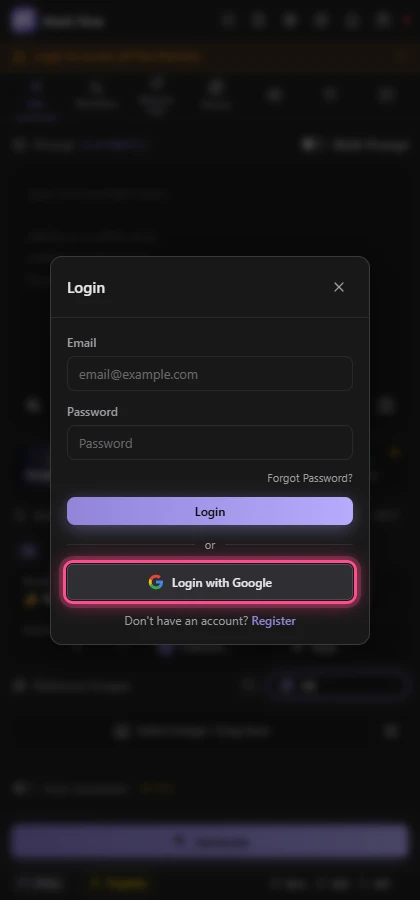
Quickest: click Login with Google and pick your Google account in the tab that opens. Then return to the side panel.
Or use email: click Register at the bottom of the box, fill in Name, Email, Password (at least 8 characters) and Confirm Password, then click Register.
You can use your account straight after registering. Mark Flow also sends a Verify your Mark Flow email message to your inbox: open it and click Verify email (the link works for 24 hours).
If the side panel has not signed you in, enter your email and password and click Login.
While your email is not verified, the side panel shows a yellow bar saying Please verify your email: open the message Mark Flow sent you and click the link. It does not lock any feature, so you can keep working. Lost the email or the link expired? Click Resend email on the yellow bar. Accounts that sign in with Google are verified already.
Forgot your password? You can reset it yourself:
Open the Login box, type your account's email in the Email field, then click Forgot Password?.
Open the Reset your Mark Flow password email (check Spam too) and click Set a new password. The link works for 60 minutes and only once; asking for a new link makes the old one stop working.
On the page that opens, type the new password twice (at least 8 characters) and click Save new password. Every old sign-in is signed out: go back to the side panel and sign in with the new password.
No email after a few minutes, or Mark Flow says it cannot send emails yet? Email admin.markflow@gmail.com from your account's email address. To change your password while signed in, open Settings > Account & plan > Change password.
After your first sign-in, Mark Flow shows a short tour pointing at the Gen tab, the generate button and the Workflow tab. Click Next to continue or Skip to close it. To see it again, click the gear icon at the top right and choose Replay tour.
To change the language, click the globe icon (Language) at the top of the side panel and pick Tiếng Việt or English. On first launch Mark Flow picks Vietnamese automatically if you are in Vietnam.
A tour of the side panel
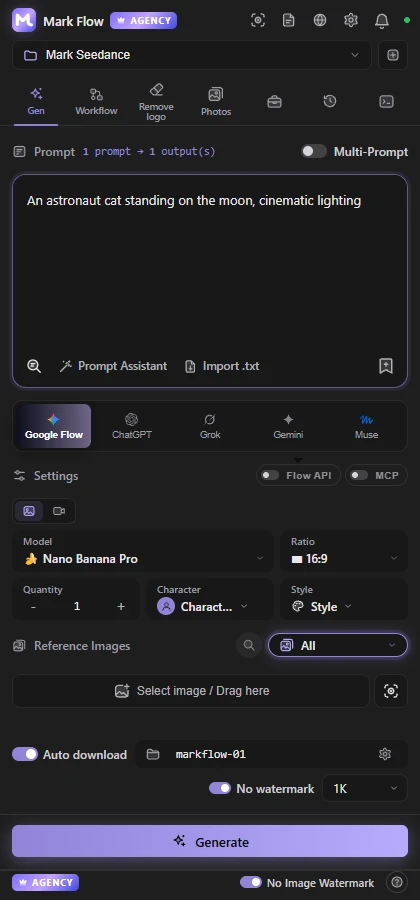
| Area | What is there | What it is for |
|---|---|---|
| Header | Plan badge (Free, Pro or Agency), the Screen capture, What's new and Language buttons, the gear and Sign in | See your plan, capture part of the screen as a reference image, read update news, open the menu |
| Project bar | The selected Flow project and a + button (Create new project) | Change the project your images and videos are created in |
| Tabs | Gen, Workflow, Remove logo (if available), Photos, plus three icons: Tools, History, Logs | Switch between features |
| Provider buttons (in the Gen tab) | Google Flow, ChatGPT, Grok, Gemini, Muse | Pick the AI site that will create your images and videos |
| Footer | Upgrade button, a ✓ or ✗ next to Download and Retry, counters for prompts today, tasks created and workflows created | See what your plan allows and how much you have used |
The gear menu holds the items you will use most: Settings (opens a separate settings window), Dark Mode, Upgrade Plan, Replay tour, Contact Support and Logout. The Tools icon opens Prompts, Tasks, Angles, Effects and AI Agent.
About projects: each project on Google Flow is like a folder of images and videos, and Mark Flow always creates results in the selected project. When the Flow tab is on its home page (no project open), the side panel shows a Select project box:
Type a few letters in Search projects... if you have many projects.
Click a project to open it in the Flow tab, or click Create new project.
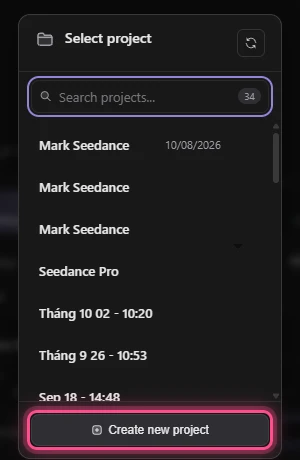
The project name then shows in the bar just below the header. Click it whenever you want to switch to another project.
What the Free plan includes
You do not need to pay to get started. The Free plan has these limits:
- Google Flow only. ChatGPT, Gemini, Grok and Muse need the Pro plan.
- Up to 4 prompts per run. There is no daily cap on how many runs you make on Flow.
- Jobs running at the same time: Free 1, Pro 4, Agency 10.
- No auto download, auto retry, Flow API or automatic logo removal on download.
- Limited tasks and workflows: 2 tasks, 1 workflow of up to 5 nodes, each run once a day.
- The Remove logo tool: 30 images and 5 videos a day; needs a signed-in account and Mark Bridge.
The full comparison and how to upgrade are in Plans and billing. Current prices are on the pricing section.
Next step: run your first batch with Batch images and videos on Google Flow.
Still stuck? See Troubleshooting or email admin.markflow@gmail.com with your Mark Flow version, the AI platform and the exact error message.